


Impatica viaDock
Installing BlackBerry Software
The BlackBerry app, "Impatica Connector", can be installed either:
Use this method to download and install the application directly using your BlackBerry.
- On your BlackBerry, go to
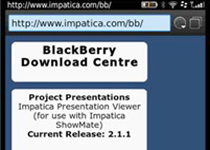
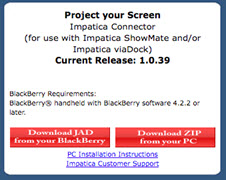
http://www.impatica.com/bb - Scroll to the “Project your Screen” section and
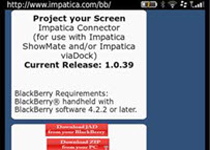
click “Download JAD from your BlackBerry”. - Click the “Set Application Permissions” checkbox.
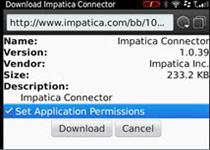
- Click "Download".
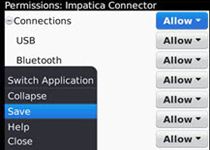
- Set all items under Connections and Interactions
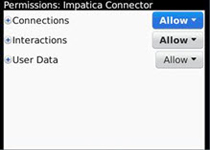
to Allow OR set the following individual permissions to Allow:
Under Connections:
- USB (only if USB connection is required)
- Bluetooth (only if Bluetooth connection is required)
- Phone
Under Interactions:
- Choose “Save”.
- Proceed with the application download.
- If your BlackBerry is associated
with a BlackBerry Enterprise Server (“BES”),
ensure that the necessary IT policies
are set. See:
Verifying BlackBerry Security Settings
Installation from your PC (Windows Only)
On your Windows PC:
- Use a web browser to go to: http://www.impatica.com/bb
- Scroll to the “Project your Screen” section of the page and click “Download ZIP from your PC”.
- Unzip ImpConnector.zip once it has been downloaded.
- Use the BlackBerry Desktop Manager Application Loader to select the “.alx” file and install the application on your BlackBerry.
- Once the application has been installed, you must ensure that the necessary application permissions are set.
On your BlackBerry, perform the following steps:
- Depending on your BlackBerry Device Software version, navigate as follows:
BlackBerry Device Software 4.2.2 to 4.5
Options > Security Options > Application Permissions
BlackBerry Device Software 4.6. to 5:
Options > Applications
BlackBerry Device Software 6+:
Options > Device > Application Management
- Select "Impatica Connector" from the list.
- Select "Edit Permissions", then either set all items under Connections
and Interactions to Allow OR set the following individual permissions
to Allow:
Under Connections:
- USB (only if USB connection is required)
- Bluetooth (only if Bluetooth connection is required)
- Phone
- Under Interactions:
- If your BlackBerry is associated with a BlackBerry Enterprise
Server (“BES”), ensure that the necessary IT policies are
set. See:
Verifying BlackBerry Security Settings


Additional Resources
- Installing PC software
- Installing BlackBerry software
- Verify BlackBerry security settings
- Registering Impatica viaDock
- Running Impatica viaDock
- Connecting to your BlackBerry
- Controlling your BlackBerry
- Disconnecting from your BlackBerry
Switching BlackBerry Applications
- Enabling clipboard sharing
- Copying from your PC to your BlackBerry
- Copying from your BlackBerry to your PC
Questions about Impatica viaDock?
Email Impatica Customer Support or call:
- In North America: (800) 548-3475
- Outside North America: (613) 736-9982